Using hardware composition
Hardware composition provides a high-performance way to composite multiple windows using the layers of the display controller. Composite multiple windows if your Kanzi application consists of multiple applications layered on top of each other, such as a cluster with an overlay. When you use hardware composition you can develop and run each of these applications separately.
Hardware composition creates a composition target that you can use like a texture. To get correct results, the hardware composition must use premultiplied alpha. See Alpha premultiplication.
When the Screen Clear Color property of the Screen node is set, Kanzi writes the color value directly to the screen output. This means that the Screen Clear Color RGB values must be premultiplied with the alpha value.
If the hardware composition does not use premultiplied alpha, you must convert to non-premultiplied alpha the RGBA values that Kanzi outputs. To convert the RGBA values to non-premultiplied alpha:
- Set Kanzi to draw the expected output to a texture.
- Draw that texture to the screen with the Blend Mode property set to Opaque and using a fragment shader that outputs RGBA values in which you divide the RGB values by the Alpha value.
For example:
- In the Library > Materials and Textures > Material Types duplicate the DefaultBlit material type, and rename the new material type and the material which uses that material type.
TIPIf your project does not contain the DefaultBlit material type, in the Library > Materials and Textures press Alt and right-click Material Types, and select DefaultBlit.
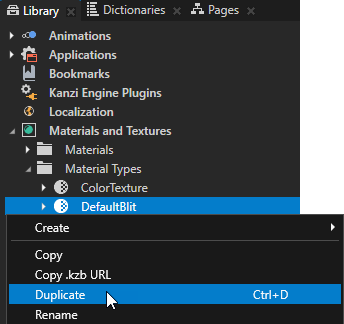
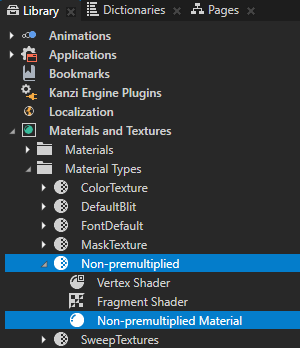
- In the Library > Materials and Textures > Material Types double-click the Fragment Shader of the new material type to open it in the Shader Source Editor, and replace the content of the fragment shader file with:
uniform sampler2D ContentTexture;
varying mediump vec2 vTexCoord;

void main()
{
    precision lowp float;

    vec4 color = texture2D(ContentTexture, vTexCoord);

    if(color.a > 0.0)
    {
        color.rgb /= color.a;
    }

    gl_FragColor = color;
}
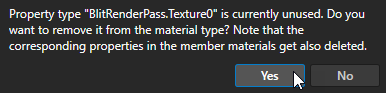
- In the Library > Materials and Textures > Material Types select the material type whose fragment shader you edited, in the Properties click Sync with Uniforms, and delete the Texture0 property type.

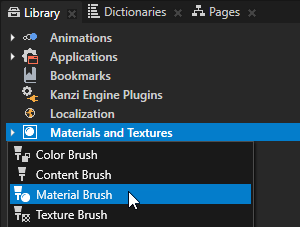
- In the Library > Materials and Textures > Brushes create a Material Brush and in the Properties set the Material property to the material which uses the material type that you created.

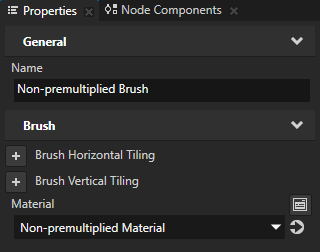
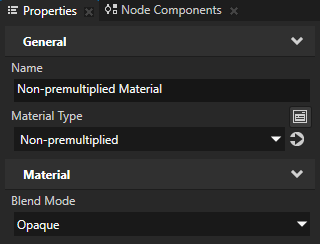
- In the Properties next to the Material property click
 to go to the material that the Material Brush uses, and make sure that the Blend Mode property of the material is set to Opaque.
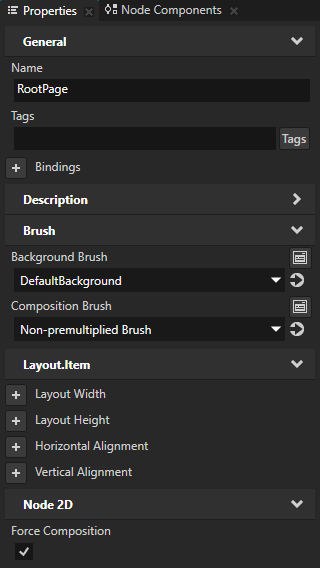
- In the Project select the RootPage node and in the Properties add and set:
- Composition Brush to the material brush that you created
- Force Composition to enabled
See also
Composition and blending
Material types and materials
Shaders

Open topic with navigation